ALM Situation
ALM situation list
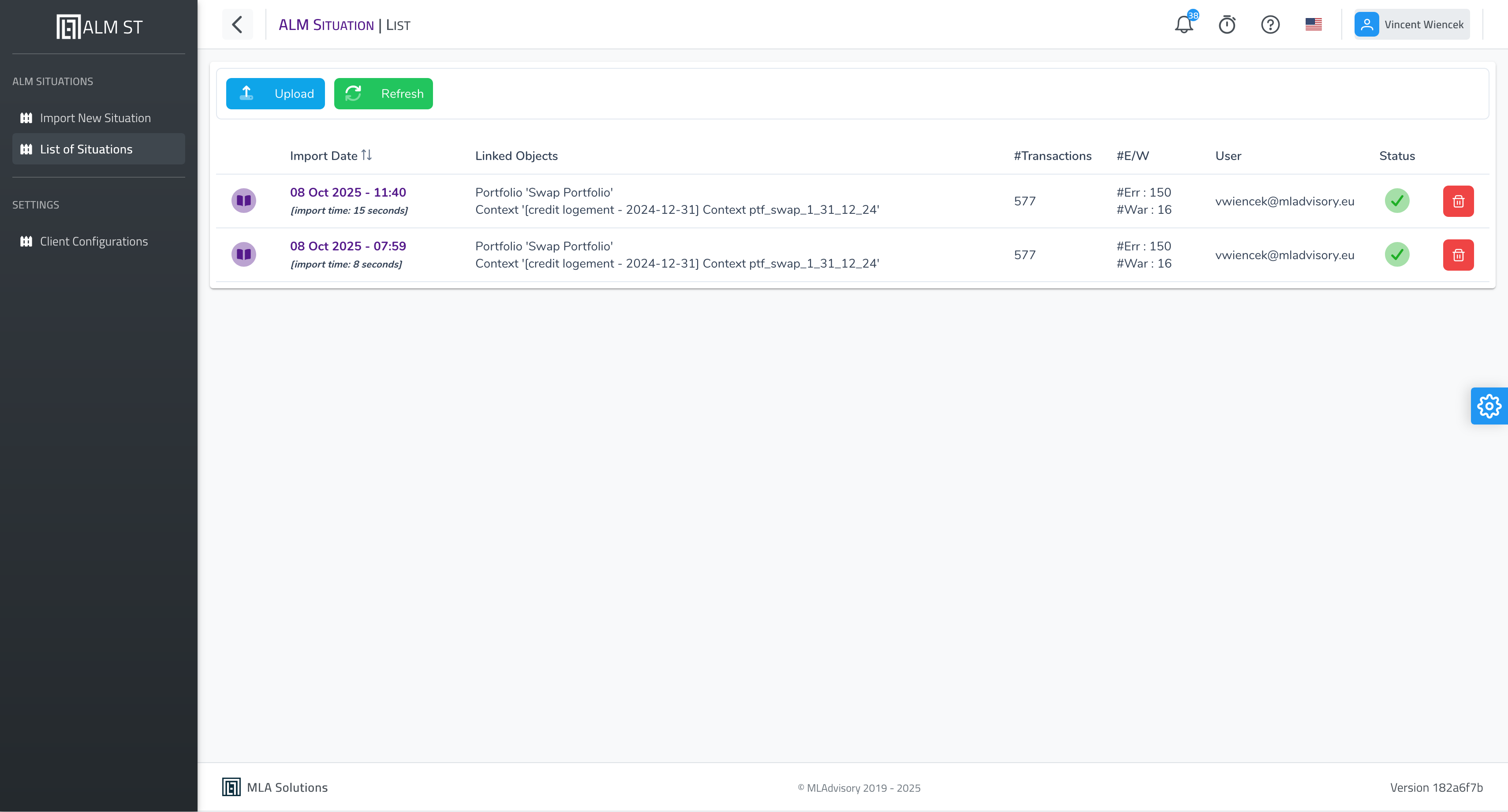
Viewing
The page opens with the summary table of all imported situations, grouped by reporting date. Each group row shows the reporting date and, in brackets, the number of situations it contains; groups are expanded by default, with the most recent date first, and within a group situations are sorted by import date in descending order.
Imports that never reached a reporting date — an import still in progress, or an import that failed before the information file was read — are gathered in a final group entitled Sans date d’arrêté (no reporting date).
Available actions

The following actions are available at the top of the table:
| Action | Description |
|---|---|
| Upload | Imports a new ALM situation from a .zip archive. Redirects to the import form. |
| Import guidé | Builds a new situation file by file, with each file checked on upload. |
| Refresh | Reloads the list to display the most recently imported situations. |
| Expand / collapse all reporting dates | The two chevron buttons open or close all groups at once. |
| Situations archivées | Tick this box to also display archived situations, which are hidden by default. |
| Situations supprimées | Administrators only: displays deleted situations, struck through in the list. |
Column descriptions

The situation list table contains the following columns:
Import Date
Date and time at which the situation was imported into the system. The import duration is shown in square brackets (e.g. [import time: 26 seconds]). Click the date to open the situation detail.
Situation Date
Reference accounting date of the ALM situation (e.g. 2025-03-31). This is the date as of which the balance sheet and portfolio data were extracted.
Linked Objects
Objects linked to the situation, comprising:
- Portfolio: the associated portfolio of financial instruments (e.g.
Swap Portfolio). - Context: the linked calculation context, identified by its label and date.
#Transactions
Total number of transactions contained in the imported situation.
#E/W (Errors / Warnings)
Number of anomalies detected during the import:
- #Err: number of blocking errors.
- #War: number of non-blocking warnings.
Click the details link to view the detail of each anomaly.
The presence of errors (#Err > 0) may indicate missing data or inconsistencies in the source file. It is recommended to review the anomaly details before using the situation in a simulation.
User
Identifier of the user who performed the import.
Status
Current status of the situation:
| Status | Meaning |
|---|---|
| Green tick | The import has completed: the situation can be used in simulations. |
| Red cross | The import failed. The Voir les erreurs (view errors) link leads to the anomaly details. |
| Activity indicator | The import is in progress; the row updates automatically. |
Brouillon badge |
A situation being built through guided import, not yet imported. |
Deleting a situation from the row menu is a soft delete: the situation disappears from the list but can be recovered by an administrator, who ticks Situations supprimées and then uses the Restaurer action. Only an administrator can permanently delete a situation from the database.
Viewing the detail of a situation
To open the detail of a situation, click the view icon (at the start of the row) or click the date in the Import Date column directly. You will be redirected to the detail page of the corresponding situation.
ALM situation detail
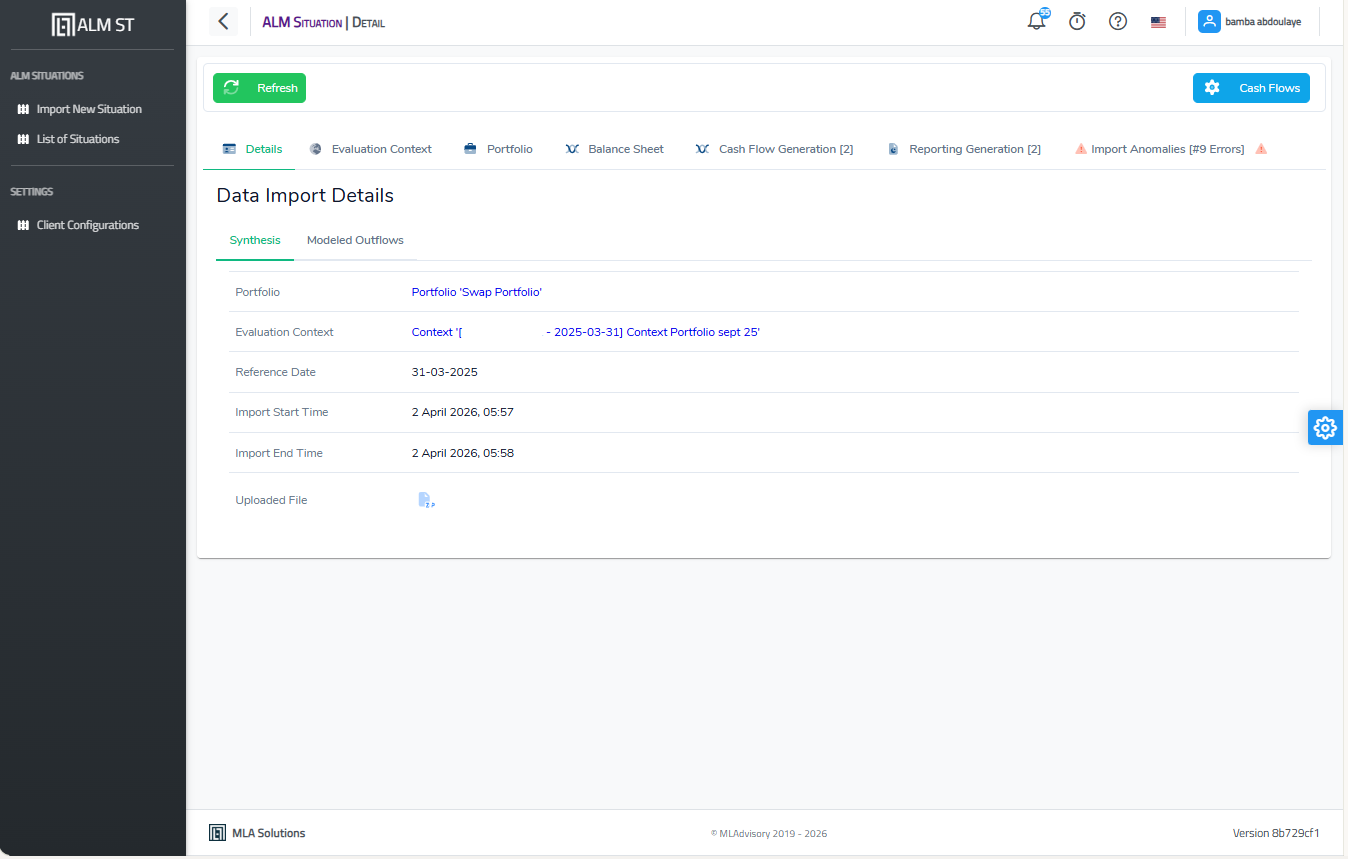
This page presents all the information relating to an imported ALM situation. It is organised into several thematic tabs giving access to the import data, the evaluation context, the portfolio, the accounting balance sheet, the cash flow and reporting generations, and the anomalies detected during the import.
The page opens with the title ALM Situation | Detail in the navigation bar. A Refresh button (top left) reloads the data at any time. A Cash Flows button (top right) launches a cash flow generation directly from this situation.
When the calculation engine has changed since the last cash flow or reporting run, a warning banner at the top of the page says so and offers to recalculate: see Warning: the engine has changed since the last run.
The page is structured into six main tabs, described below.
Details tab
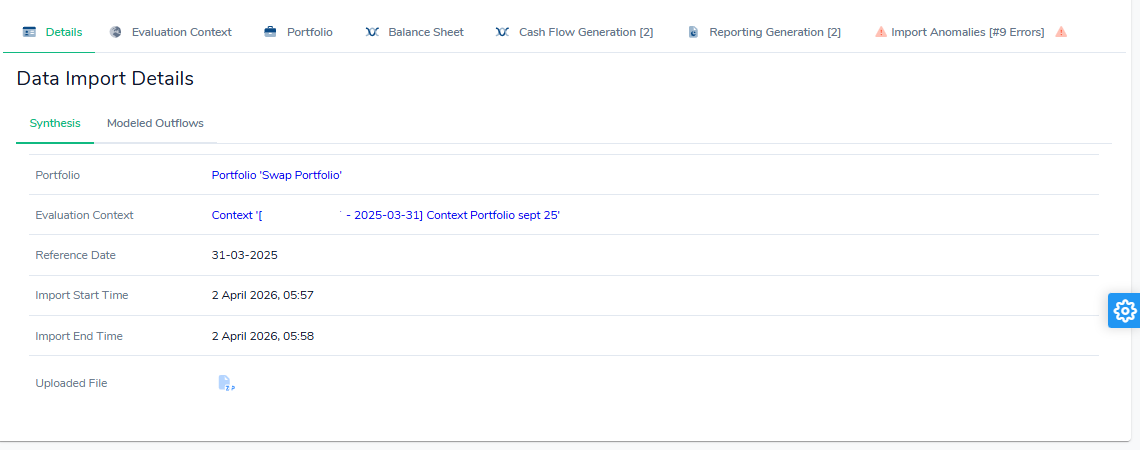
The Details tab is the tab displayed by default when the page opens. It contains two sub-tabs: Synthesis and Modeled Outflows.
Synthesis sub-tab
This sub-tab displays general information about the situation import.
| Field | Description |
|---|---|
| Portfolio | Clickable link to the portfolio of financial instruments associated with the situation (e.g. Portfolio 'Swap Portfolio'). |
| Evaluation Context | Clickable link to the evaluation context used during the import, identified by its label and reference date. |
| Reference Date | Accounting date of the situation, in DD-MM-YYYY format (e.g. 31-03-2025). |
| Import Start Time | Date and time at which import processing started (e.g. 2 April 2026, 05:57). |
| Import End Time | Date and time at which import processing ended (e.g. 2 April 2026, 05:58). |
| Uploaded File | Icon for downloading the imported source zip. |
Modeled Outflows sub-tab
This sub-tab lists the modelled outflow strategies associated with the transactions of the situation. The table contains the following columns:
| Column | Description |
|---|---|
| Type | Type of modelling strategy (e.g. LinearOutflowStrategy). |
| Product Name | Name of the product concerned (e.g. accounting). |
| Reference | Reference of the transaction or group of transactions. |
| Rate | Rate parameters applied to the strategy: calculation method, type and value (e.g. EXACT_EXACT / SIMPLE / FIXED / 0.015). |
| Details | Additional strategy parameters, notably the frequency (e.g. Frequency: YEAR) and the time horizon (e.g. Time Horizon: 6Y). |
Evaluation Context tab
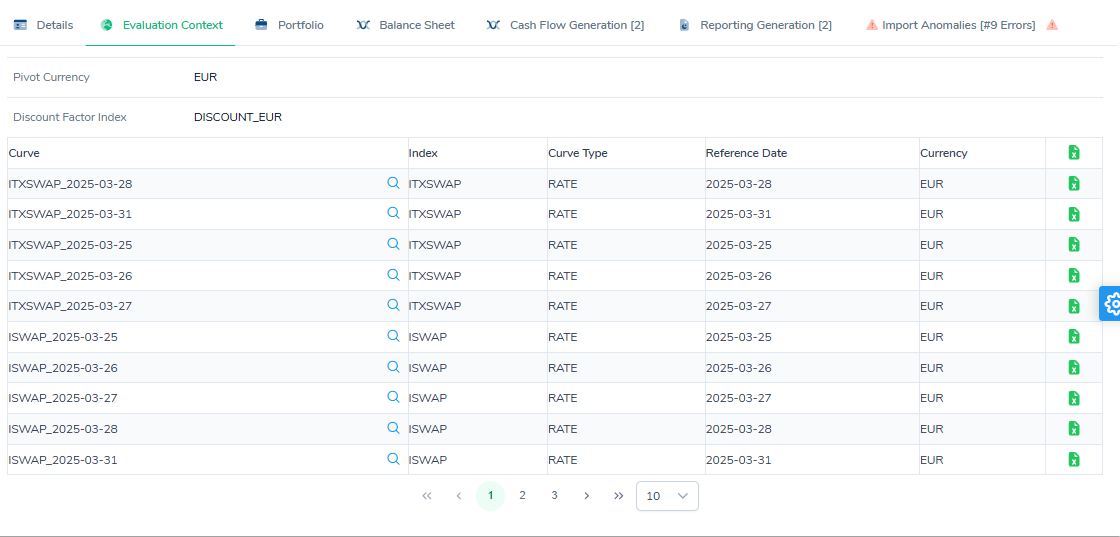
This tab displays the parameters of the evaluation context used for this situation.
Two items are displayed in the table header:
- Pivot Currency: reference currency of the context (e.g.
EUR). - Discount Factor Index: index used for discounting (e.g.
DISCOUNT_EUR). This is the resolved curve index, not the label chosen at import: a bank label mapped inindexesis displayed here under the name of the curve it points to.
The table lists the rate curves associated with the context:
| Column | Description |
|---|---|
| Curve | Name of the rate curve, made up of the index name and the reference date (e.g. ITXSWAP_2025-03-31). A magnifying-glass icon opens the curve detail. |
| Index | Market index associated with the curve (e.g. ITXSWAP, ISWAP). |
| Curve Type | Type of the curve (e.g. RATE). |
| Reference Date | Date on which the curve was observed (e.g. 2025-03-31). |
| Currency | Currency of the curve (e.g. EUR). |
A download icon at the end of each row exports the data of that curve.
Portfolio tab
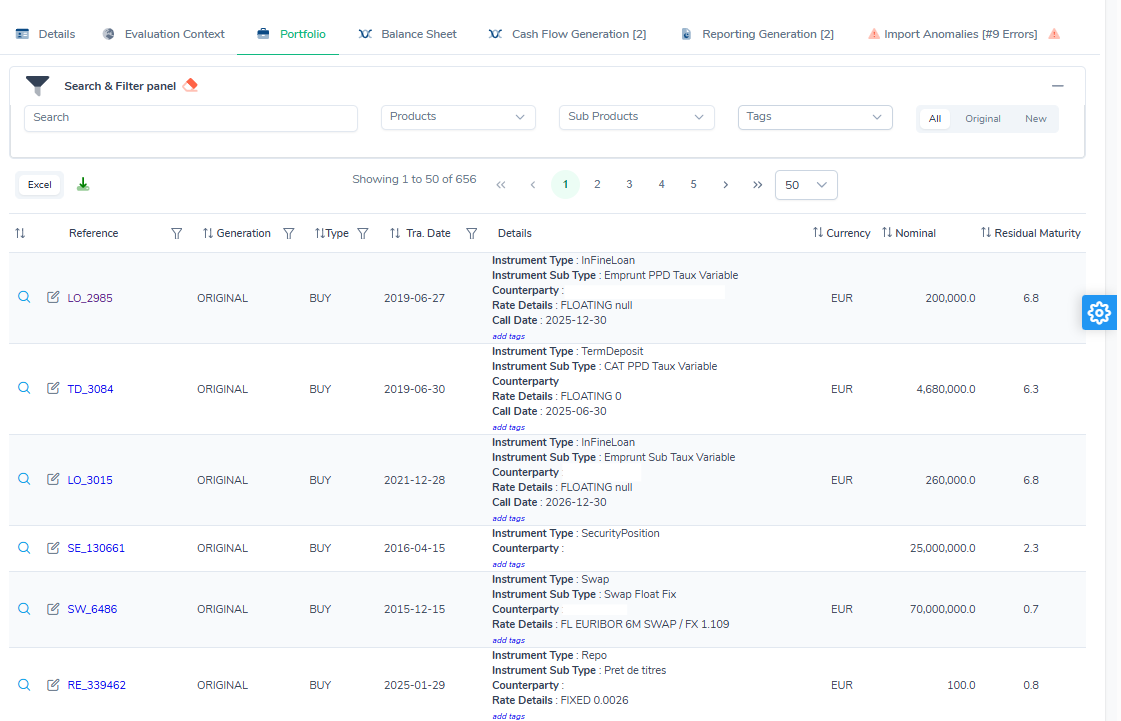
This tab presents the list of financial instruments making up the portfolio associated with the situation.
Search and filter panel
A Search & Filter panel is available at the top of the page for filtering instruments on the following criteria:
- Search: free-text search on references or labels.
- Products: filter by product type.
- Sub Products: filter by product sub-type.
- Tags: filter by tag associated with the instruments.
- All / Original / New: toggle to display all instruments, original instruments only, or new instruments only.
An Excel button and a download icon export the list of instruments in spreadsheet format.
Table columns
| Column | Description |
|---|---|
| Reference | Unique reference of the instrument. Three icons are available at the start of the row: a magnifying glass to view the detail, a pencil to edit the tags and a page with a pen to edit the deal. |
| Generation | Indicates whether the instrument is an original instrument (ORIGINAL) or a generated one. |
| Type | Direction of the transaction (e.g. BUY). |
| Tra. Date | Transaction date of the instrument. |
| Details | Block of detailed information: instrument type, sub-type, counterparty, rate details, call date. An add tags link allows labels to be attached to the instrument. |
| Currency | Currency of the instrument. |
| Nominal | Nominal value of the instrument. |
| Residual Maturity | Residual maturity of the instrument, expressed in years. |
Adding or editing a deal
The New deal button, to the right of the search panel, adds a deal to the situation; the edit icon at the start of a row corrects an existing deal. Both open the same window. Neither the button nor the icon is shown when the portfolio is viewed from a generation (see below).
Saving changes the situation: the generations already run on it are marked obsolete and must be run again.
The deal. Reference (unique within the situation), counterparty (picked from the existing counterparties, searchable by reference or name), transaction date, settlement date, direction (BUY for an asset, SELL for a liability) and quantity. The quantity is 1 for an imported deal: the amount is carried by the product, not by the quantity.
The product. The product type selects the form. Fields marked with an asterisk are required.
| Type | Fields |
|---|---|
InFineLoan |
start date, amount, rate, end date, interest payment period; optional: loan type, commercial and liquidity margins, liquidity curve index, call date |
AmortizableLoan |
start date, amount, rate, instalment type (FIX_INSTALLMENT, FIX_AMORTIZATION), payment period and number of payments; optional: as for the in fine loan |
Deposit |
amount, rate; optional: start date |
TermDeposit |
amount, rate, end date, interest payment period; optional: start date, call date |
Repo |
instrument type, start and end dates; optional: ISIN, dealer, face value, rate, frequency, call date, rate of each leg, leg 2 face value, interest amount, premium |
SecurityPosition |
start and maturity dates, notional, rate, frequency; optional: ISIN, call date, remaining value, premium |
AccountingBalance |
account, account detail, amount, rate, outflow strategy |
Swap |
start and end dates, leg 1 and leg 2 (each: direction PAYING or RECEIVING, nominal, rate, frequency, period type FORWARD or BACKWARD); optional: call date |
Option |
type (Call or Put), end date, maturity in years, strike, underlying (price, volatility) |
Nantissement |
maturity date, amount |
An amount is entered as a value and an ISO currency (EUR by default). A rate is entered as a type (FIXED or FLOATING), a value as a decimal (0.015 for 1.5 %), a spread, a day count and an interest mode; a floating rate also needs its index and, where relevant, its repricing period. An optional amount or rate left empty is not saved.
An accounting balance’s outflow strategy is required: without it the engine cannot generate its cash flows. It is either linear (a horizon such as 120m, and a frequency) or by band: each band is picked from the tenor ladder and given a percentage of the balance, and the total must be 100 %. The total is shown while typing. An imported strategy keeps its reference when the deal is edited.
Changing the product type keeps the fields both forms share (dates, amount, rate). Every product type has its form. The Edit as json switch remains for an unusual property; the properties the form does not show are kept in any case when the deal is edited through the form.
Before sending, the window lists the required fields left empty, with their path for a leg field (“Leg 2 › Frequency”), and saves nothing until they are filled in.
What the log records
Every save of a deal is recorded in the situation’s Modifications tab, with the date and the user:
- a creation (
CREATE) keeps the whole deal: reference, counterparty, direction, quantity, dates, and every value of the product; - an update (
UPDATE) gives one row per value that changed, with before and after. A product value is named by its path in the form’s labels, such as “Product › Leg 2 › Rate › Value” from 0.02 to 0.025. A field that did not change gives no row; a save with no change gives none and does not make the generations obsolete; - a deletion (
DELETE) keeps, like a creation, the whole deal, so it can still be read once it is gone.
A generation’s deals cannot be changed
A deal a generation produced (a renewal, a replacement of a matured deal…) is a result of the engine, not data of the situation: it can be neither edited, nor deleted, nor retagged, and the application refuses these operations. The portfolio viewed from a generation is entirely read-only: no New deal button, no edit icon, no tags link. To correct an imported deal, open the portfolio of the situation itself.
Accessing the detail of a position
Clicking the reference of a position (blue link in the Reference column) redirects the user to the detail page of the corresponding financial instrument. This page is displayed with the title Transaction | Detail in the navigation bar, and shows in its header the associated import task together with its date and time (e.g. Import task [2 April 2026, 05:57]).
The page is organised into two tabs: Details and Transaction Data.
Details tab
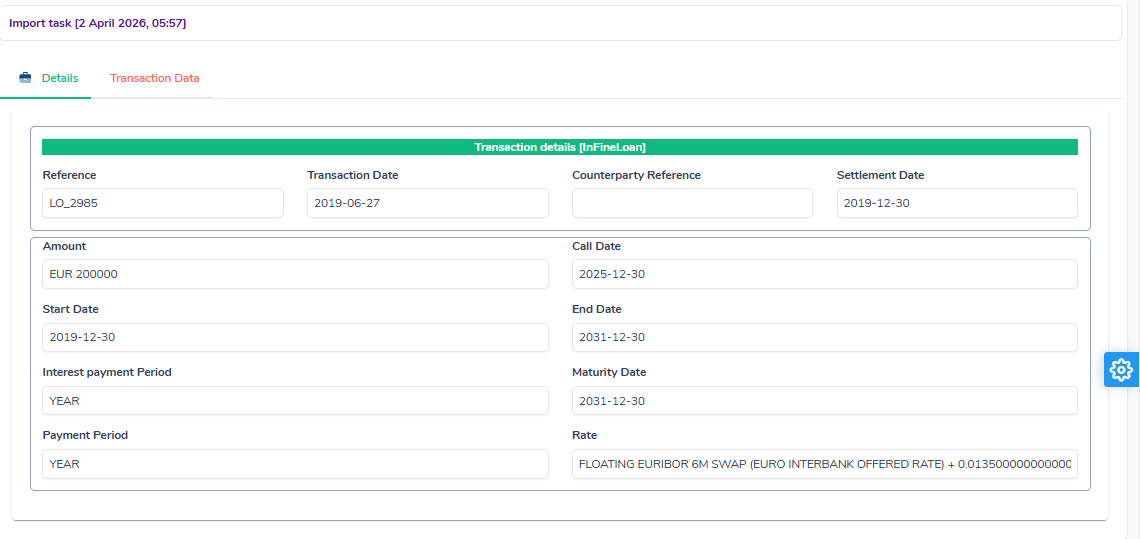
This tab presents the main information of the transaction in the form of a structured form. The instrument type is displayed in the form header (e.g. Transaction details [InFineLoan]).
| Field | Description |
|---|---|
| Reference | Unique reference of the instrument (e.g. LO_2985). |
| Transaction Date | Transaction date of the instrument (e.g. 2019-06-27). |
| Counterparty Reference | Name of the counterparty associated with the instrument (e.g. CRCA CHARENTE PERIGORD). |
| Settlement Date | Settlement date of the transaction (e.g. 2019-12-30). |
| Amount | Nominal amount of the transaction with its currency (e.g. EUR 200000). |
| Call Date | Optional call date of the instrument (e.g. 2025-12-30). |
| Start Date | Start date of the instrument’s life (e.g. 2019-12-30). |
| End Date | End date of the instrument’s life (e.g. 2031-12-30). |
| Interest Payment Period | Frequency of interest payments (e.g. YEAR). |
| Maturity Date | Final maturity date of the instrument (e.g. 2031-12-30). |
| Payment Period | Frequency of principal payments (e.g. YEAR). |
| Rate | Detail of the rate applied to the instrument, comprising the type (fixed or floating), the reference index and the margin (e.g. FLOATING EURIBOR 6M SWAP + 0.0135). |
Deal source
At the top of the tab, the Source line says where the deal came from:
| Deal | What the line shows |
|---|---|
| Imported | The file, sheet and row, for example deals.xlsx · deals · row 7. The number is the one Excel or a text editor shows, header included: opening the file at that row shows the values of the Transaction Data tab. It is also the number the import anomalies give. |
| Generated from the ledger | Ledger line, then the accounting file and its line. |
| Produced by the engine (renewal, replacement) | Original row of followed by the reference of the original deal, then that deal’s file and row: the deal has no row of its own. |
| Entered by hand | Manual entry. |
A link downloads the file, as it was uploaded, when the import kept it separately: that is the case of a guided import. For a situation imported from a single archive, download the complete archive from the situation’s page.
The line also gives the client configuration revision the import used, its date and its author. Editing a deal never changes its source. A deal imported before this feature shows Not recorded: import the situation again to get it.
Transaction Data tab
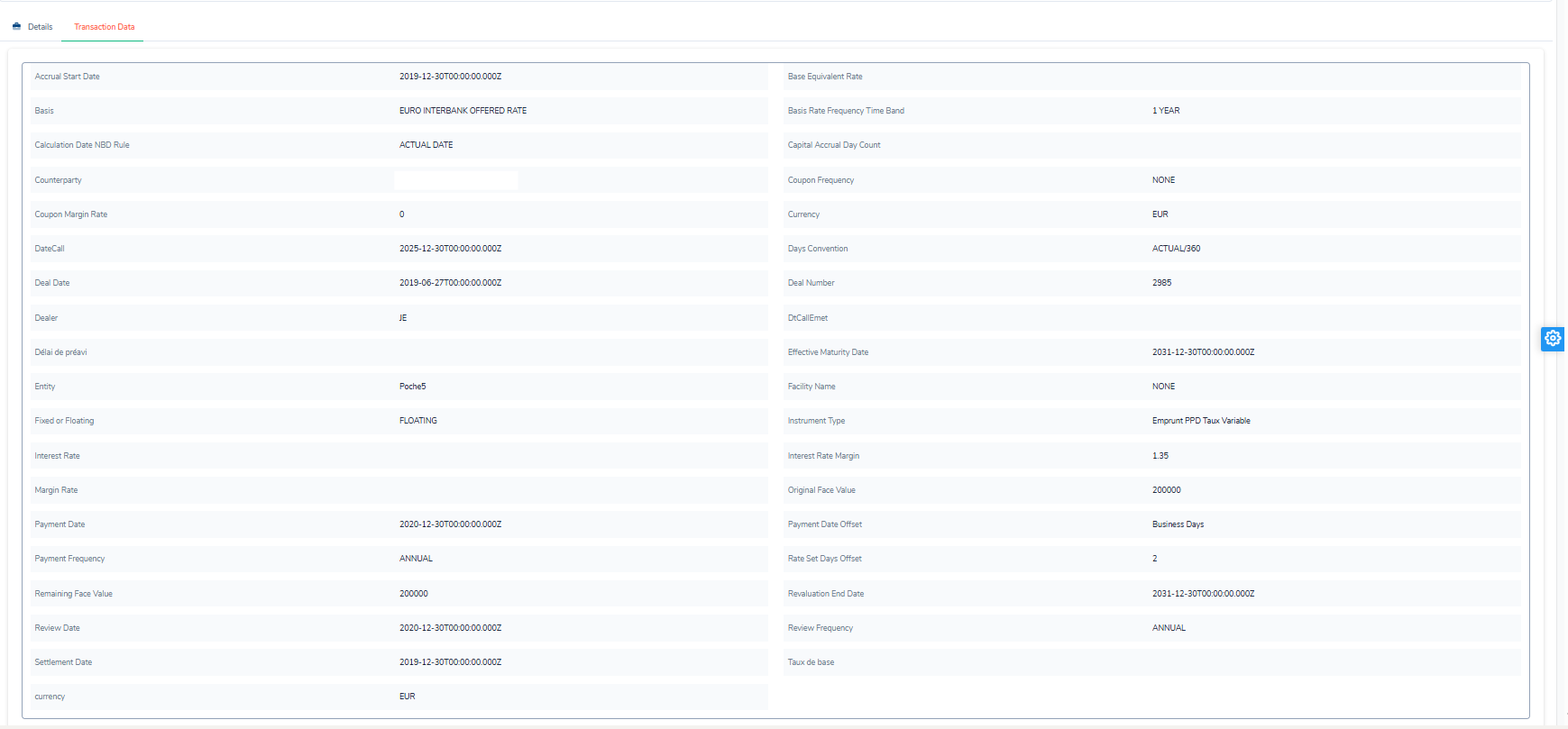
This tab displays all the raw technical data of the transaction, as imported from the source file. The fields are presented as a two-column grid.
| Field | Description |
|---|---|
| Accrual Start Date | Start date of interest accrual. |
| Base Equivalent Rate | Base equivalent rate (may be empty). |
| Basis | Reference market index (e.g. EURO INTERBANK OFFERED RATE). |
| Basis Rate Frequency Time Band | Reset frequency of the base rate (e.g. 1 YEAR). |
| Calculation Date NBD Rule | Business-day rule for calculating the date (e.g. ACTUAL DATE). |
| Capital Accrual Day Count | Day-count convention for principal accrual (may be empty). |
| Counterparty | Name of the counterparty (e.g. CRCA CHARENTE PERIGORD). |
| Coupon Frequency | Coupon frequency (e.g. NONE). |
| Coupon Margin Rate | Coupon margin (e.g. 0). |
| Currency | Currency of the instrument (e.g. EUR). |
| DateCall | Call date in ISO 8601 format (e.g. 2025-12-30T00:00:00.000Z). |
| Days Convention | Day-count convention (e.g. ACTUAL/360). |
| Deal Date | Deal date in ISO 8601 format (e.g. 2019-06-27T00:00:00.000Z). |
| Deal Number | Number identifying the deal in the source system (e.g. 2985). |
| Dealer | Code of the dealer responsible for the transaction (e.g. JE). |
| DtCallEmet | Optional issuer call date (may be empty). |
| Délai de préavis | Notice period before prepayment (may be empty). |
| Effective Maturity Date | Effective maturity date in ISO 8601 format. |
| Entity | Accounting entity to which the instrument belongs (e.g. Poche5). |
| Facility Name | Name of the associated credit facility (e.g. NONE). |
| Fixed or Floating | Indicates whether the rate is fixed or floating (e.g. FLOATING). |
| Instrument Type | Instrument sub-type as shown in the source file (e.g. Emprunt PPD Taux Variable). |
| Interest Rate | Nominal interest rate (may be empty if the rate is floating). |
| Interest Rate Margin | Interest rate margin applied (e.g. 1.35). |
| Margin Rate | Additional margin rate (may be empty). |
| Original Face Value | Original face value of the instrument (e.g. 200000). |
| Payment Date | Next payment date in ISO 8601 format. |
| Payment Date Offset | Payment date adjustment rule (e.g. Business Days). |
| Payment Frequency | Payment frequency (e.g. ANNUAL). |
| Rate Set Days Offset | Number of offset days for rate fixing (e.g. 2). |
| Remaining Face Value | Remaining outstanding face value (e.g. 200000). |
| Revaluation End Date | Revaluation end date in ISO 8601 format. |
| Review Date | Next rate review date in ISO 8601 format. |
| Review Frequency | Rate review frequency (e.g. ANNUAL). |
| Settlement Date | Settlement date in ISO 8601 format. |
| Taux de base | Reference base rate (may be empty). |
| Currency | Currency of the instrument (e.g. EUR). |
Balance Sheet tab
This tab displays the accounting balance sheet data associated with the situation. It is organised into two sub-tabs.
Accounting Statement sub-tab
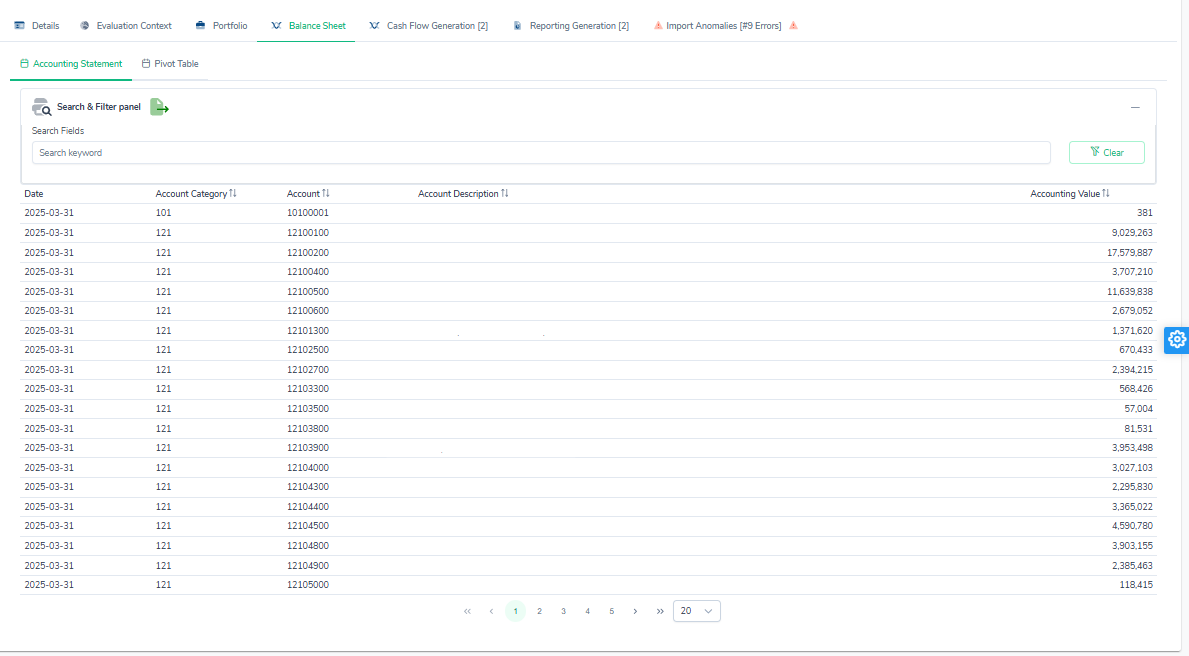
This sub-tab presents the accounting lines of the situation in a table.
A Search keyword field filters the lines by keyword. An export button (file icon) exports the data.
| Column | Description |
|---|---|
| Date | Accounting date of the line (e.g. 2025-03-31). |
| Account Category | Accounting category of the line (e.g. 101, 121). |
| Account | Accounting account number (e.g. 10100001). |
| Account Description | Label of the counterparty or account (e.g. LCL LE CREDIT LYONNAIS). |
| Accounting Value | Accounting value associated with the line. |
Pivot Table sub-tab
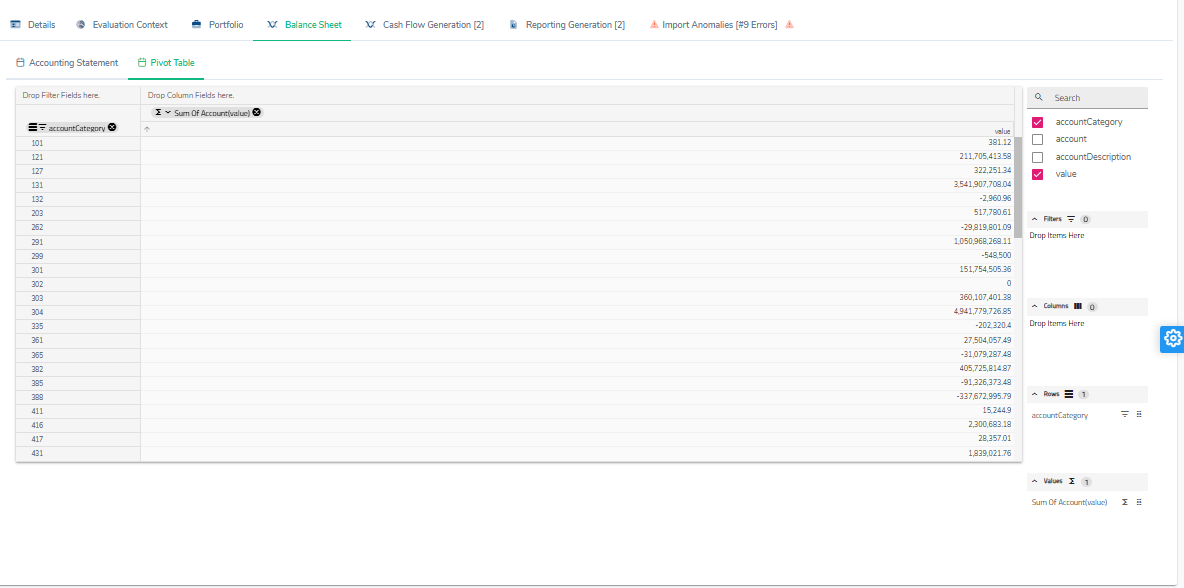
This sub-tab displays the accounting balance sheet data as a configurable pivot table. The page is divided into two areas: the table area (left) and the configuration panel (right).
Table drop zones
| Zone | Description |
|---|---|
| Drop Filter Fields here | Fields used as global filters on the data. |
| Drop Column Fields here | Fields displayed as columns. |
| Central area | Results aggregated by group. |
Configuration panel
Four fields are available (drag and drop them onto the desired zones):
| Field | Description | Active |
|---|---|---|
| accountCategory | Accounting category | Yes |
| account | Detailed account number. | No |
| accountDescription | Label of the account or counterparty. | No |
| value | Accounting amount, used for aggregates. | Yes |
The panel comprises four configuration sections:
- Filters: global filters applied to the table.
- Columns: fields displayed as columns.
- Rows: fields used for grouping into rows.
- Values: calculated measures. The Σ icon changes the aggregation function (sum, average, etc.).
Reconciliation sub-tab
This sub-tab reconciles, accounting poste by accounting poste, the ledger balance imported with the situation with the outstanding the situation models. It shows whether the ALM scope is complete and whether each transaction is filed on the account where the general ledger books it.
Ledger lines left out and postes with several classification lines are reported by a warnings banner at the top of the sub-tab (see Where the warnings are shown).
Attaching to a poste
- Postes: the classification accounts (
mapping_compta, without their trailing stars), completed by the accounts the transactions received at import, starred ones included (9431**). - Ledger line: it is attached to the most precise poste that covers it, the one that fixes the most digits; with as many digits, the exact poste wins over the starred one. Example: with
9431**and943101,94310100goes to943101and94310000to9431**. A line no poste covers forms its own poste, with scopeUNCLASSIFIED. - Transaction: it is attached to the account recorded in its classification at import: the one from the
histosheet or, failing that, from theinstrumentAccountsmapping (principle). A modelled balance line is attached to the reference of its outflow strategy, without the stars (Classification and balance). A transaction with no recorded account is grouped on a line with no poste, listed last. - Transactions taken into account: only the import’s own transactions count. Renewals created by a constant balance sheet generation are excluded.
Amounts compared
| Side | Amount |
|---|---|
| Ledger | Sum of the poste’s ledger lines, with their sign (liabilities negative). |
| ALM | Sum, in absolute value, of the principal the engine projects for each transaction: the amount of a loan, a deposit or a balance line; a security’s notional; a repo’s Original Face Value (its cash leg); the first-leg nominal of a swap. A transaction with none of these is counted but adds nothing. |
| Difference | ALM outstanding − |ledger balance|. A positive difference means the situation models more than the ledger carries. |
Amounts are rounded to the cent.
Scope and status
A poste’s scope comes from the classification flags: FINANCIAL_OPERATION when the Operation Financiere column is 1, otherwise MODELLED_BALANCE when the Encours Modelisé column is 1, otherwise OUT_OF_SCOPE. An account missing from the classification is UNCLASSIFIED.
| Status | Meaning |
|---|---|
| MATCHED | Both sides carry an amount and the difference, in absolute value, is at most the tolerance. |
| DIFFERENCE | Both sides carry an amount and the difference exceeds the tolerance. |
| SIGN_MISMATCH | The poste’s transactions are modelled on the other side of the balance sheet than its balance (assets against a debt, or the reverse); the ALM outstanding column shows the signed outstanding. |
| ALM_ONLY | Transactions are modelled on the poste, and no ledger line belongs to it. |
| UNCOVERED | The ledger carries the poste, at least one of its lines is a balance-sheet account, and neither a deal nor a run-off model covers it: a hole in the situation, to fill (balance-sheet coverage). |
| OUTSIDE_BALANCE_SHEET | Every line of the poste is typed PNL or OBS by accountingMapping and nothing is modelled on it: the poste is outside the coverage check. |
| COVERED_ACCRUED | The poste is covered only as the accrued-interest poste of deals (accruedInterestAccounts): covered, amount not compared. |
| LEDGER_ONLY, NOT_MODELLED | Statuses of reconciliations computed before the coverage rule; replaced by UNCOVERED and OUTSIDE_BALANCE_SHEET. |
The tolerance is expressed in the ledger’s unit. It defaults to 1 and must be zero or positive.
Coverage
A banner above the table gives the ledger’s coverage ratio: the balance, in absolute value, of the balance-sheet postes covered by deals or a run-off model, over that of all balance-sheet postes. It also shows the uncovered amount and the number of UNCOVERED postes, and filters the table on those postes. The reconciliation is closed at 100 %. Each poste and each ledger line shows its accountingMapping type.
Columns
| Column | Description |
|---|---|
| Poste | Classification account (or the account of an unclassified ledger line). |
| Status | See above. |
| Description | Label of the poste’s first ledger line, in account order. Truncated to one line; hover shows the full label. |
| Balance sheet / Counterparty | The poste’s category in the classification (e.g. Actif / Interbancaire). The category’s FINREP row is shown underneath. |
| Ledger balance, ALM outstanding, Difference | See above. |
| # Transactions | Number of transactions attached to the poste. Badges complete the count: the transactions filed by an explicit mapping (the histo sheet); ⚠ n, on a situation imported before the instrumentAccounts mapping, the transactions filed by their product’s default account; ⊘ n, the transactions with no readable principal, counted here but not in the outstanding. |
A poste’s detail lists its ledger lines (account, label, value) and its transactions (reference, product, instrument type or balance line label, currency, principal, account origin).
Reading the differences
- Accrued interest receivable and payable, discounts, balancing payments: they are booked on their own postes (e.g.
304720,304122,304123) and have no transaction against them. They are covered by their transactions, as an accrued-interest poste (COVERED_ACCRUED), onceaccruedInterestAccountsnames their poste; otherwise they stayUNCOVERED. - Transactions on the wrong poste: a poste in
DIFFERENCEorALM_ONLY, next to a poste inUNCOVERED, usually points to transactions filed on the wrong account (e.g. reverse repos on203120while the ledger books them on301110). Fix theinstrumentAccountsrule of their instrument or, for a few transactions, thehistosheet, then re-import the situation. - Line with no poste: the transactions no rule covers. Add the rule of their instrument.
- Carrying amount and nominal: a security booked at a value other than its nominal gives a difference equal to that gap.
Known limit: amounts are summed in their own currency, without conversion. A poste mixing currencies does not reconcile in the strict sense.
Import Anomalies tab
This tab gathers all the anomalies detected during the import of the situation. The total number of errors is shown in square brackets in the tab label (e.g. Import Anomalies [#9 Errors]). An alert icon signals the presence of anomalies.
Anomaly log
The anomalies of an import, of a guided-import file, of a cash-flow generation and of a reporting all show in the same log.
Summary. At the top, the number of anomalies, then one count per level: ERROR (red), WARNING (amber) and INFO (blue-grey). Clicking a count filters the log on that level; several levels combine.
Toolbar.
- Search: free text looked up in the message, the reference and the code.
- Code or type: filter by anomaly code (each code followed by its number of occurrences) or, for anomalies without a code, by type (e.g.
Index,ImportSynthesis,ImportTransaction). - List / By code: switches between the two views below.
- Clear filters, as soon as a filter is on.
- Export Excel: exports all the anomalies (import and cash-flow generation). The file gives each anomaly’s Code and, in the Manual column, a link to its description in the anomaly reference; both stay empty for an anomaly recorded before codes were introduced. A second sheet, Codes, lists the codes present with their level, effect, number of occurrences and message template, errors first; its last row,
(no code), counts the anomalies without a code.
List view. One row per anomaly, sortable and paged (10 to 100 rows per page):
| Column | Description |
|---|---|
| Level | ERROR, WARNING or INFO badge. |
| Code | Code of the anomaly (e.g. TRX-012), a link to its entry; see Anomaly codes. |
| Reference | Reference of the transaction, file or index concerned. |
| Message | Message of the anomaly. |
The arrow at the start of the row unfolds the detail: the type, the object concerned (only when it does not repeat the message) and the technical details.
By code view. One row per code or, for anomalies without a code, per identical type and message. It gives the group’s most severe level, the message (with the values specific to each anomaly replaced by …) and the number of occurrences. Errors come first, then warnings and information, the most frequent group first within each level. The arrow unfolds the references concerned, 10 per page, each with what it adds to the group’s message (its own values); Show in the list opens the list filtered on that group. Above 50 anomalies, the log opens on this view: 400 identical anomalies read as one row.
Anomaly codes
Each anomaly carries a code of the form <DOMAIN>-<NNN> (e.g. TRX-012), the same in every language. Clicking the code opens, in the help panel, the code’s entry in the anomaly reference: the condition that triggers it, its effect on the import or the calculation, and how to fix it.
Anomalies recorded before codes were introduced carry none: the Code column stays empty and the By code view groups them by type and message.
Import Anomalies types
Import anomalies are classified by type, accessible through the Code or type filter. Each type corresponds to a specific step in the ALM situation import process. The full list of types raised at import is given in Import: processing and conversions.
| Type | Usual level | Object concerned | Description |
|---|---|---|---|
| Index | WARNING / ERROR |
Variable | Anomaly relating to a market index of the evaluation context. As a WARNING: the curve is quoted more than 50 days from the reference date. As an ERROR: the index is not mapped (e.g. Discount Factor Index 'DISCOUNT_EUR' is not mapped), or an index of the mapping is missing from the rate file. An unreadable curve row (Unable to parse index : …) has type RateCurveParsing. |
| ImportTransaction | ERROR |
File | A transaction in the source file could not be imported. The message details all the attributes of the transaction concerned (ISIN, nominal, counterparty, dates, rates, etc.). |
| Parsing | WARNING / ERROR |
Variable | Error raised while parsing the source file. Indicates that a field or value could not be correctly interpreted by the import engine. |
| ImportSynthesis | INFO / ERROR |
File | Summary of each deals file (or sheet): Imported n lines from m, as an ERROR when rows were rejected. |
| Mapping | WARNING / ERROR |
Variable | A field in the source file could not be matched to an internal reference dataset (product, entity, counterparty, etc.). Check the mapping configuration in the client settings. |
| CompoundCurve | WARNING / ERROR |
Variable | Anomaly relating to the construction of a compound rate curve. The expected curve cannot be rebuilt from the components available in the evaluation context. |
| ConstraintViolation | ERROR |
Variable | A data consistency constraint was violated during the import (e.g. missing mandatory value, invalid date format, inconsistency between two fields). |
| Direction | WARNING |
Transaction |
Once per Crédit Logement transaction file: the number of transactions (money market, securities, repos) whose direction was inferred from the instrument type (investments, borrowings, unrecognised types booked BUY), for lack of a Borrow or Invest value (Crédit Logement import). |
| DayCount | WARNING |
Transaction |
Once per swap file: the number of legs that took the market convention (30/360 fixed, ACT/360 on EURIBOR, €STR or EONIA), with the cause — empty cell, business-day rule, unrecognised value (Crédit Logement import). |
| Missing | ERROR |
Mapping |
A piece of data the import cannot do without is missing (client, reference date, discount index, unreadable pre-fixed cash flow file, no transaction file…). |